DataDock documentation
DataDock is a free, open-source database client for macOS, Windows and Linux. It connects to PostgreSQL, MySQL, MariaDB, SQLite, Microsoft SQL Server, Oracle, MongoDB, Redis and InfluxDB — plus the cloud & analytical engines DuckDB, ClickHouse, Snowflake and BigQuery — all from a single window, and adds spreadsheet-style editing, SSH tunneling, a built-in AI assistant, a live replication-topology monitor and an analytics dashboard builder with scheduled PDF reports.
These docs are split into short, focused pages. New here? Read this page, then head to Connecting & organizing.
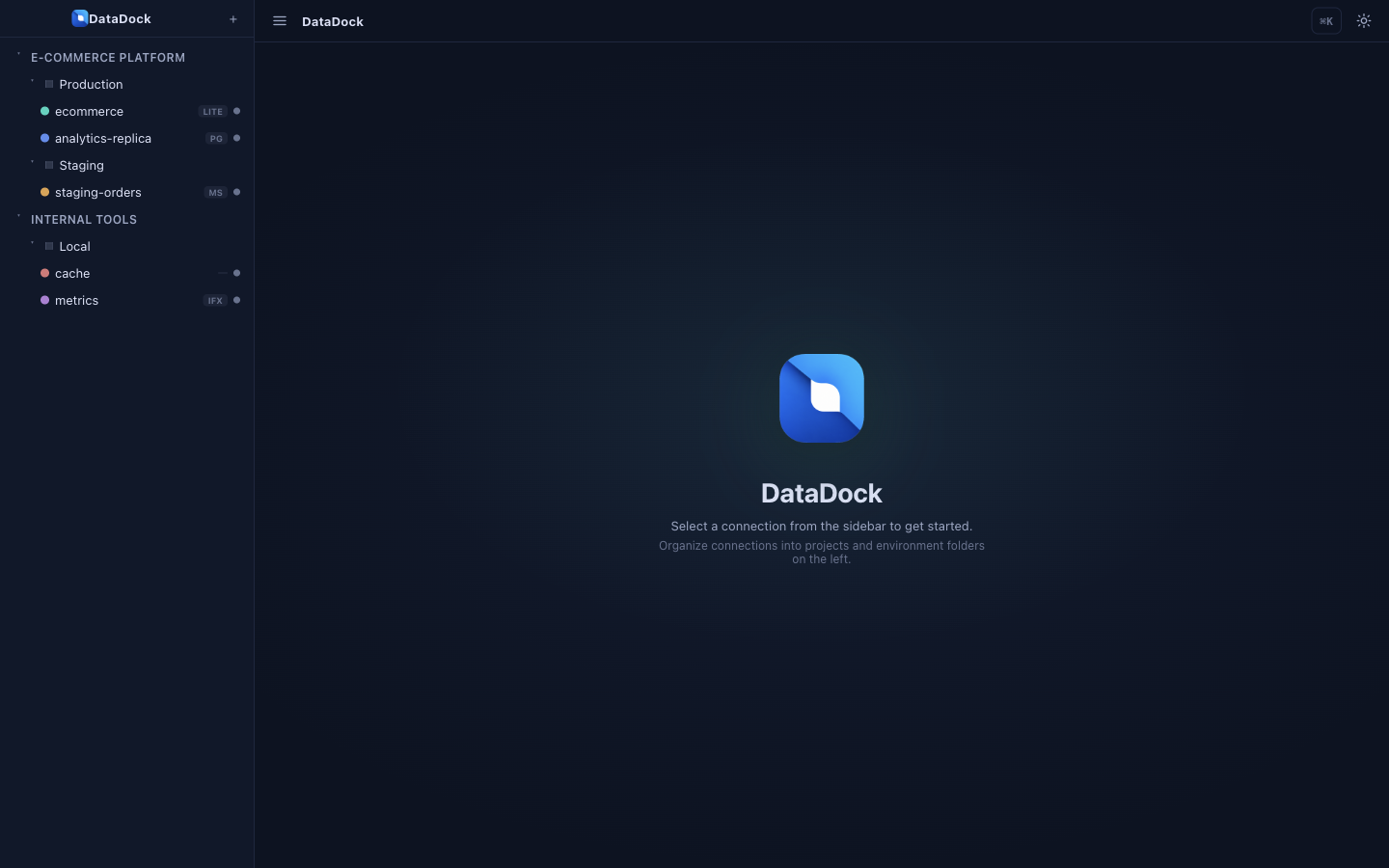
Explore the docs
Connecting & organizing
Create connections, organize them into projects & environments, tunnel over SSH and lock down production.
Supported engines
Fifteen engines — PostgreSQL, MySQL, SQLite, SQL Server, Oracle, MongoDB, Redis, InfluxDB, plus DuckDB, ClickHouse, Snowflake & BigQuery.
Browsing & editing
The spreadsheet-style grid, inline edits, visual exploration, the ER diagram and the structure editor.
The SQL editor
Multi-tab editing, schema-aware autocomplete, history, snippets, formatter and EXPLAIN.
Built-in AI
Natural-language to SQL, explain, fix-with-AI and chat with your data — Claude, Gemini, Mistral, Grok or Ollama.
Analytics & dashboards
The no-SQL chart builder, drag-and-drop dashboards and scheduled PDF reports.
Tools & utilities
Replication topology monitor, Redis queues, import/export, data masking, performance insights and server tools.
Reference
Keyboard shortcuts, the command palette, security & privacy and the FAQ.
Install & first launch
Grab the build for your operating system from the GitHub releases page. DataDock is MIT licensed — no account, nothing to pay.
🍎 macOS
Open the .dmg and drag DataDock into Applications. On first launch, right-click the app and choose Open to clear the unsigned-app prompt.
🪟 Windows
Run the .exe installer. If SmartScreen appears, choose More info → Run anyway.
🐧 Linux
Use the AppImage (chmod +x then run) or the .deb package for Debian/Ubuntu.
🛠 From source
Clone the repo, then npm install and npm run dev.
System requirements
DataDock is a desktop app built on Electron, Vue 3 and TypeScript, running on macOS, Windows and Linux. No server or account is required — the AI features call out to whichever provider you configure (and you can keep that fully local with Ollama).
Key concepts
| Term | What it means in DataDock |
|---|---|
| Project | The top level of the sidebar — usually one app or client. |
| Environment | A folder inside a project grouping connections by stage — Local, Staging, Production. |
| Connection | A single database you can open — its engine, host, credentials, color and options. |
| Safe mode | A per-connection read-only guard that blocks writes — ideal for production. |
| Command palette | The ⌘K / Ctrl K launcher for jumping to any table, view or action. |