Connecting & organizing
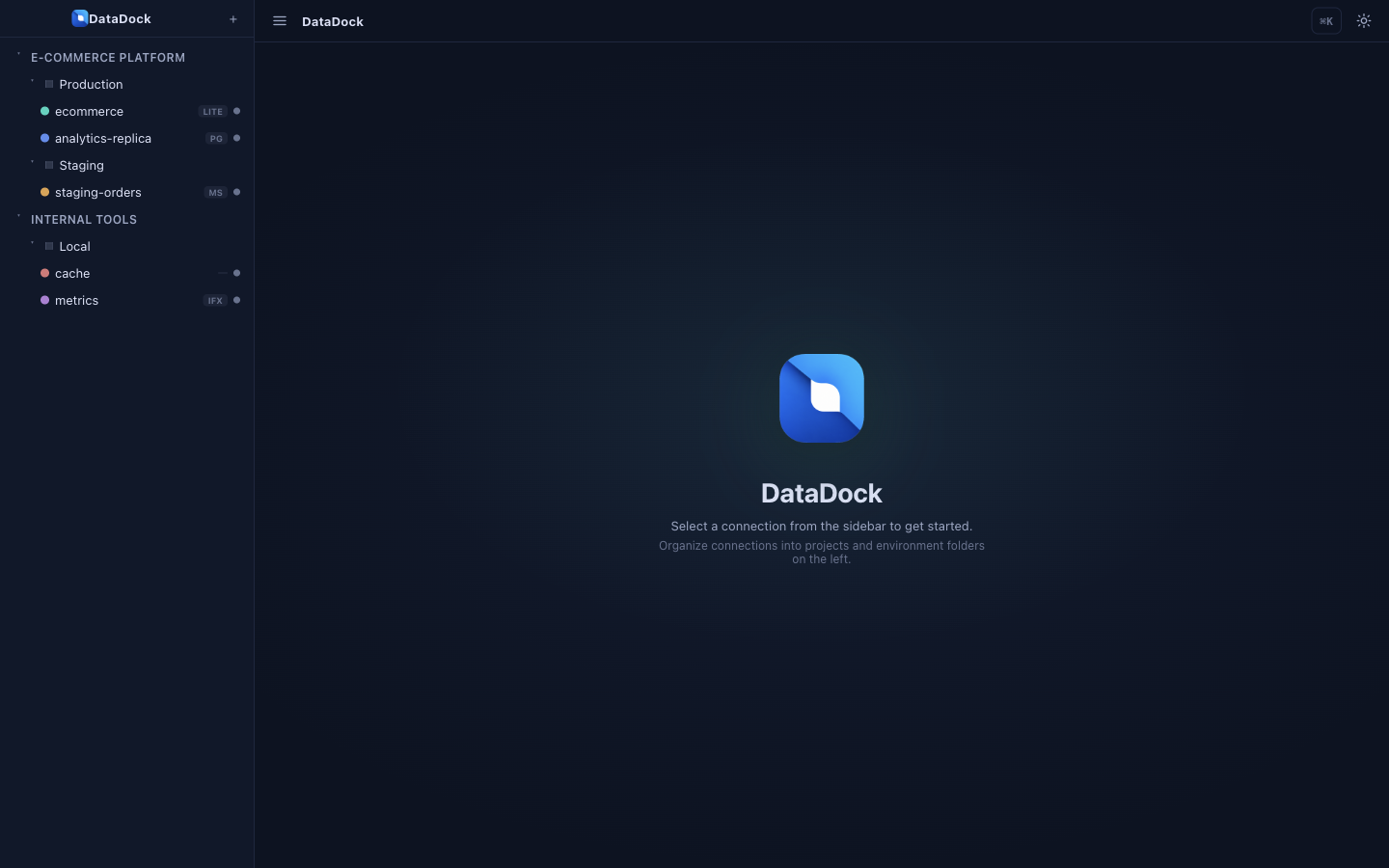
A connection is one database you can open. DataDock keeps connections tidy by grouping them into projects and environment folders, so you click your way to the right database instead of scanning a flat list.
Create your first connection
Click New Connection (or press ⌘N / Ctrl N) and fill in the form.
- Pick an engine — PostgreSQL, MySQL/MariaDB, SQLite, SQL Server, MongoDB, InfluxDB or Redis. The form adapts to each engine's fields.
- Give it a display name and color — e.g. Production primary in red. The color follows the connection everywhere, so you always know which database you're in.
- Enter the host and port — e.g.
localhostand5432for PostgreSQL. For SQLite, choose the database file instead. - Add credentials — username, password and database name. They're encrypted at rest on your machine.
- (Optional) Enable an SSH tunnel if the database lives behind a bastion — see below.
- Test & create — hit Test connection, then Create. Double-click the new connection to open it.
Organize: project → environment → connection
Instead of one long list of prod_db_2_FINAL_v3-style names, DataDock nests connections three levels deep:
📁 E-Commerce Platform      # project
 ├─ 🗂  Production            # environment
 │   ├─ ● ecommerce          (SQLite)
 │   └─ ● analytics-replica  (PostgreSQL)
 └─ 🗂  Staging
     └─ ● staging-orders     (SQL Server)
Drag connections between folders to reorganize, and collapse projects you're not using. Each connection is color-coded, encrypted at rest, and can be exported to share a setup with a teammate.
SSH tunneling
Many production databases sit behind a bastion (jump) host. DataDock can open an SSH tunnel as part of the connection, so the database appears local while traffic is forwarded securely over SSH.
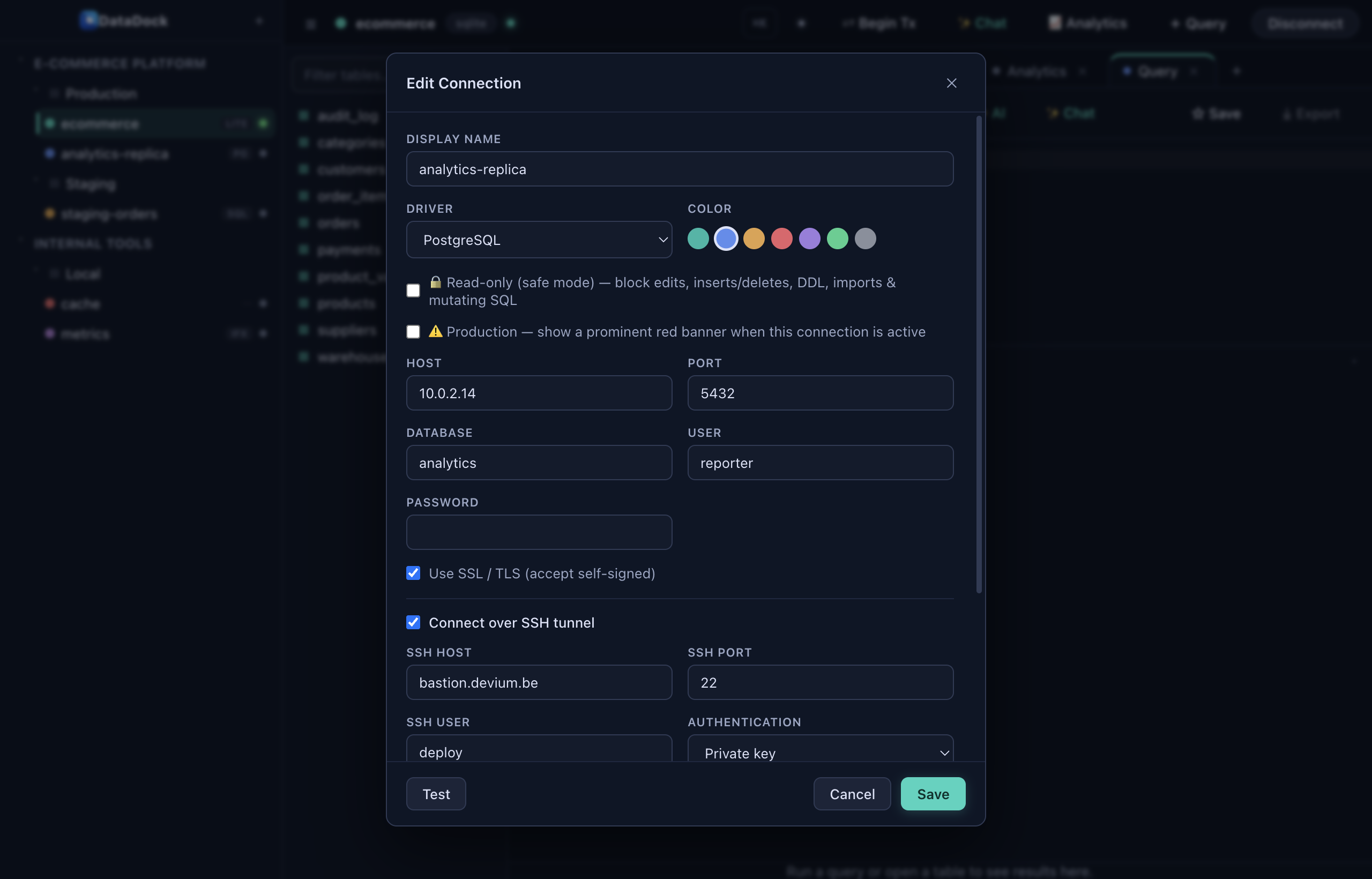
Enable Use SSH tunnel and provide the SSH host & port, the SSH user, and an authentication method:
- Private key — point to your key file (with an optional passphrase).
- Password — a plain SSH password.
- SSH agent — reuse keys already loaded in your running agent.
DataDock then connects to the database host/port from the bastion's perspective — usually localhost and the engine's default port. The tunnel opens automatically whenever you open the connection.
Read-only safe mode
Safe mode is a per-connection guard that blocks every write — no INSERT, UPDATE, DELETE, DROP or schema change. Turn it on for any connection where a stray query would be expensive, especially production.
- Inline editing, bulk edits and the structure editor are disabled.
- The SQL editor refuses to run statements that would modify data.
- A connection can also show a prominent PRODUCTION banner as an extra reminder.
Combine safe mode with a distinct color — red for prod, amber for staging — so the environment you're in is unmistakable at a glance.